The ability to post a period is based on a combination of settings in Enterprise Manager's Location Details screen. See "Inventory Posting – Related Setup" for details about the settings in Enterprise Manager that determine WHEN a location can post. Before posting Inventory for any period, check to be sure that all of the transactions that need to be entered have been entered and saved correctly. See the Inventory Posting Checklist for a list of things to verify before posting as well as restrictions that may be defined by Corporate. Inventory cannot be posted until the Final for Post inventory for the period has been saved and all restrictions have been resolved. If the appropriate parameters have been configured in Enterprise Manager, the application can Post automatically.
- From the Administration menu, click Post Inventory.
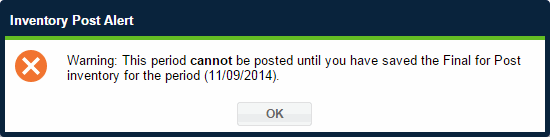
- If the period’s "Final for Post" physical inventory has NOT been processed, a warning message will appear indicating this must be completed prior to Post.
- If the Final for Post has been completed, the Overdue Post Transactions box will appear. This displays a list of transactions that may have an effect on inventory for the period. These will be pending transactions with a Due Date ≤ the Post Date.
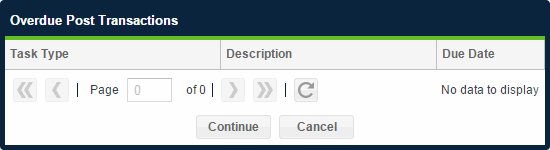
- If necessary, click Cancel and complete the relevant transactions prior to posting. If there are no transactions listed or none that need to be completed, click Continue.
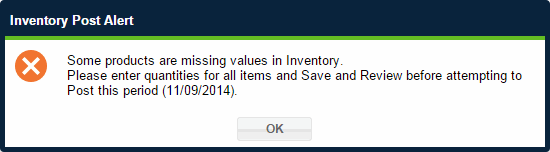
- If the period’s "Final for Post" physical inventory has been processed but some products have blank quantities (indicating that update By Exception is necessary), a warning message will appear indicating this must be completed prior to Post.
- Before posting, verify that the "Period Purchases", "Period Consumption", and "Ending Inventory" values are correct in the Summary for Post Period box. See "Inventory Posting Summary Calculations" for details on how these values are calculated.

- If the amounts are not correct, click Cancel. Make whatever adjustments are necessary, then return and post. Do not post incorrect amounts.
- When ready, click Post. If the post is successful, a confirmation box will appear.
- In the confirmation box, click OK to return to the Inventory Overview page.
 Related Topics