Reconcile an Electronic Invoice with Substitutes
When an electronic invoice is received, it may include products substituted by the vendor for products on the original order. Some of them will be automatically resolved using alternate vendor products defined in Enterprise Manager; others must be resolved by the user. These invoices may also include products added (forced-shipped) by the vendor or that were delivered by this vendor but were originally ordered from another vendor.
Note: These instructions are specific to electronic invoices that include substitute/added products.
For detailed steps to reconcile orders, see "Vendor Order Reconcile Screen".
The Vendor Order Reconcile screen below displays an electronically invoiced order containing products with 3 different "statuses":
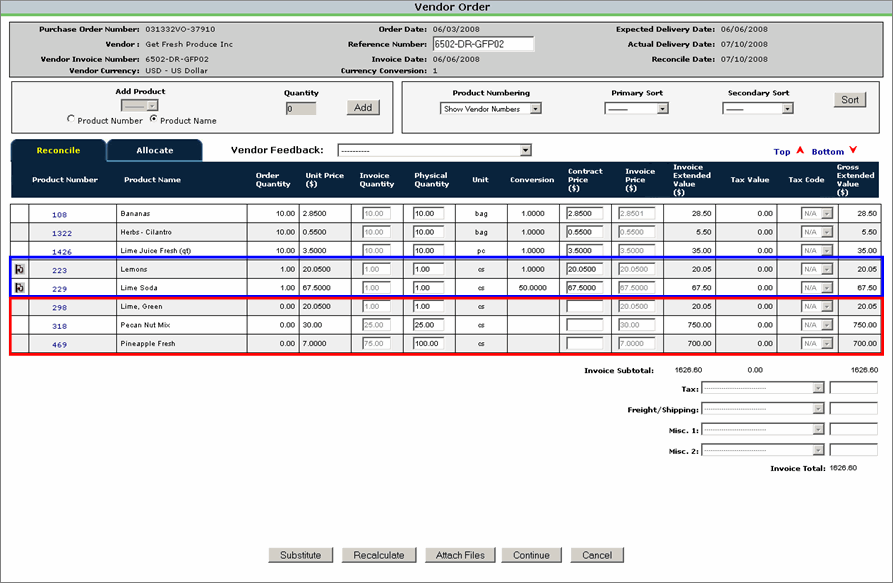
Note: Products that have been defined as a "Restricted" substitute in Enterprise Manager will be displayed in red text; a pop-up message will appear with information on how to handle these products.
- The first 3 products have been "resolved" - they were on the original order and require no changes.
- The next 2 products (outlined in blue) were automatically substituted when the electronic invoice was imported, indicated as such by a grey flag in the first column. These products match alternate vendor products defined in Enterprise Manager.
- The last 3 products (outlined in red) are "unresolved" - they do not correspond to a product on the original vendor order or to any company product eligible for ordering. These products were added or substituted by the vendor but do not match any alternate vendor product defined in Enterprise Manager.
If the order contains NO "unresolved" products, the user can click the Continue button to finish reconciling. If the order does contain any "unresolved" products, they must be resolved by the user before the order can be reconciled.
Note: The "Continue" button and "Allocate" tab will both be disabled until all products have been resolved.
Product Columns
- Auto-Substituted Flag (not labeled) – A gray flag will appear here if the product was substituted by the vendor and matches an alternate vendor product defined in Enterprise Manager.
- Product Number – Displays based on 'Show Vendor Numbers' or 'Show Company Numbers.' For "unresolved" products this will display the Vendor Product Number from the electronic invoice, regardless of the Product Numbering setting.
- Product Name – Displays based on 'Show Vendor Numbers' or 'Show Company Numbers.' For "unresolved" products this will display the Vendor Product Description from the electronic invoice, regardless of the Product Numbering setting.
- Order Quantity – Displays the order quantity followed by the "Order Unit" along with the order unit Conversion to the vendor unit. For "unresolved" products, this will be '0' since these products weren't on the original order.
- Unit Price – Displays the price per vendor unit from the original order. For "unresolved" products, this will be blank until entered by the user in the "Add/Substitute" pop-up window, since these products weren't on the original order.
- Invoice Quantity – Displays the Invoice Quantity from the electronic invoice; can be edited by authorized users.
- Physical Quantity – Defaults to "Invoice Quantity"; must be edited if the actual physical quantity is different.
- Unit – Displays the "Vendor Unit" from Vendor Bids in Enterprise Manager. For "unresolved" products, this will display the vendor unit from the electronic invoice file, if included. (For US Foods Electronic Invoices, the values will be CA, EA, or LB). If not included in the invoice file, this must be selected by the user.
- Conversion - Displays the vendor conversion from Vendor Bids in Enterprise Manager. For "unresolved" products, this must be selected by the user.
- Contract Price - Displays the vendor's Bid Price effective for the actual delivery date of the vendor product. For "unresolved" products, this must be entered by the user.
- Invoice Price – Displays the Invoice Price from the electronic invoice; can be edited by authorized users.
- Invoice Extended Value = [ Invoice Quantity x Invoice Price ]
- Tax Value = [ Invoice Extended Value x (1 - Total Tax Rate for the selected "Tax Code" ]
- Tax Code – Displays the tax code from the original order.
- Gross Extended Value = [ Invoice Extended Value + Tax Value ]
Note: The invoice may include or the user may have to add products that were delivered by this vendor but were originally ordered from another vendor. In this case, the application will use the other vendor’s bid to populate "Conversion", "Contract Price", "Invoice Price" and "Tax Value" (if a Tax Code has been assigned).
 Related Topics